WordPress has made website creation accessible to everyone, from hobbyists to large corporations. With its vast ecosystem of free plugins and themes, you can build your online presence (a portfolio, a blog, or an online store) without hiring a team of web developers or investing in a website-building company. However, this flexibility comes with a caveat. WordPress isn’t a walled garden with preset security parameters. Instead, it’s a customizable platform you can tailor to your needs, including security measures. Every plugin you add, theme you install, and customization you make brings new possibilities and potential new security risks. Put simply, in WordPress, your site’s security strongly depends on you.
WordPress Security Checklist
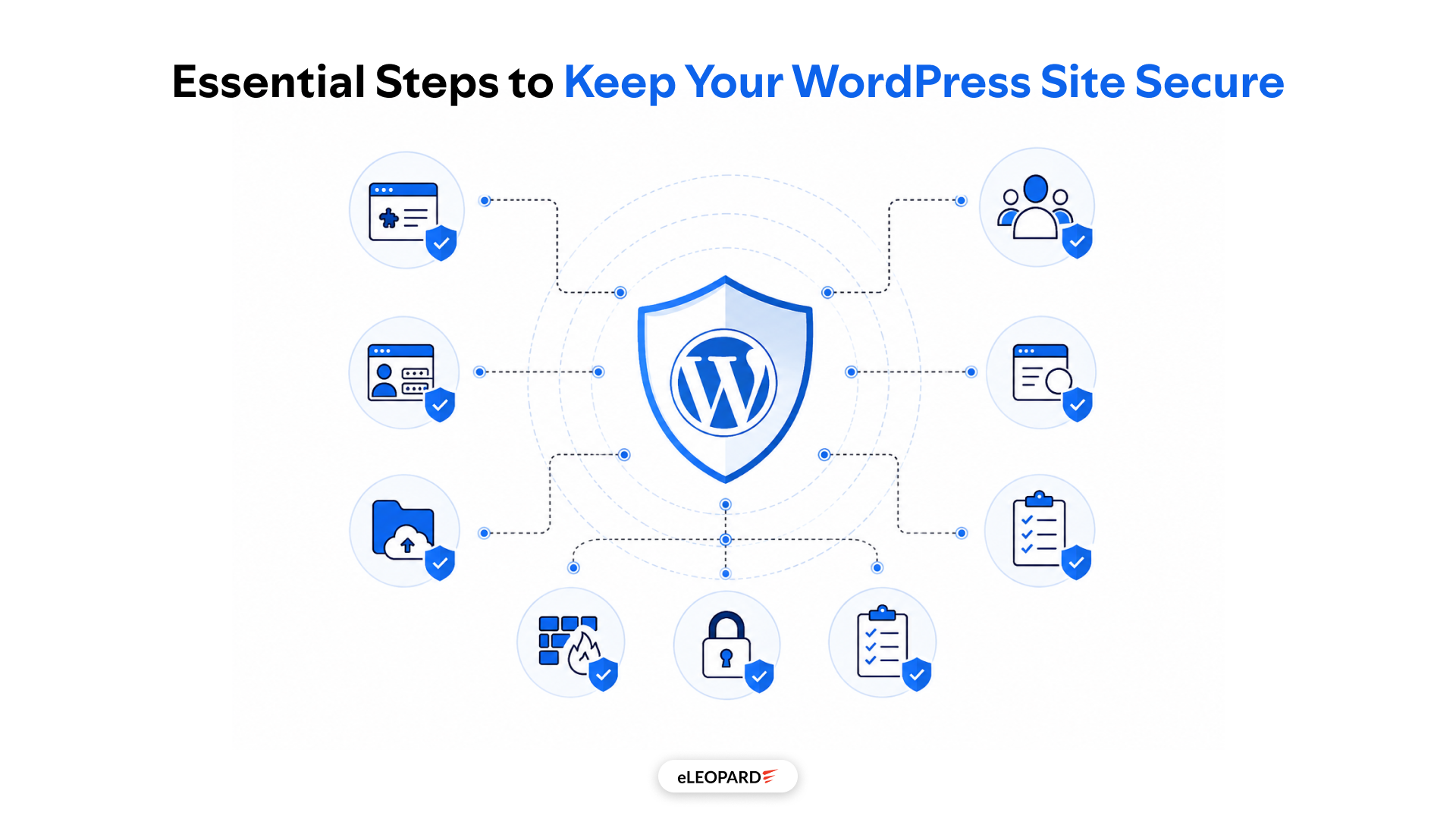
This WordPress security checklist covers the essential measures every business owner should know, from software updates and login protection to backups, malware monitoring, and recovery planning.
Core Maintenance and Updates
1. Keep WordPress Core Updated
WordPress releases updates for several reasons, including security improvements, bug fixes, performance changes, and new functionality.
Running an outdated version can leave known vulnerabilities unpatched. Whenever a security update is available, it should be reviewed and applied promptly.
What to do:
- Keep WordPress core updated.
- Review major WordPress releases before updating production websites.
- Take a backup before significant updates.
- Check that important plugins and themes remain compatible.
- Test important website functions after an update.
For business websites, avoid blindly updating everything without checking the site afterward. A simple post-update review of forms, navigation, checkout, login functionality, and important landing pages can help catch problems early.
2. Update Plugins and Themes Regularly
Plugins and themes extend WordPress functionality, but they also introduce additional software into your website.
A plugin that has not been updated for a long time may contain a vulnerability that attackers can exploit. The same applies to outdated themes, even if the theme is not actively being used.
Follow these practices:
- Check plugin and theme updates regularly.
- Prioritize security updates.
- Remove plugins that are no longer maintained.
- Avoid downloading plugins or themes from unreliable sources.
- Review whether every installed plugin is actually necessary.
A useful rule for business websites is simple: if you do not need a plugin, do not keep it installed.
Reducing the number of unnecessary components also reduces the number of things you need to maintain.
3. Remove Unused Plugins and Themes
Deactivating a plugin is not the same as removing it.
An inactive plugin remains installed on the server and may still contain vulnerable code. If that software is compromised, an attacker may potentially use it as an entry point.
The same principle applies to unused WordPress themes.
Regularly review your website and:
- Delete inactive plugins you no longer need.
- Remove unused themes.
- Keep only one or two necessary themes where appropriate.
- Replace abandoned plugins with actively maintained alternatives.
Before deleting anything, make sure it is not required by another feature, plugin, or custom functionality.
4. Use a Supported PHP Version
WordPress runs on PHP, so the PHP version used by your hosting environment matters for both security and performance.
Older PHP versions eventually reach the end of their official support period. Continuing to use unsupported software can increase security and compatibility risks.
Business owners should:
- Check the PHP version provided by their hosting company.
- Use a currently supported version compatible with their WordPress setup.
- Test the website after changing PHP versions.
- Keep plugins and themes updated to avoid compatibility problems.
If you are unsure which PHP version to use, check your hosting provider’s current recommendations rather than changing it blindly on a live website.
Strengthen Login and Access Security
Your WordPress administrator account is one of the most important parts of your website to protect.
Even if your WordPress installation is fully updated, an attacker who obtains administrator credentials may be able to access the dashboard and make significant changes.
5. Use Strong, Unique Passwords
Never reuse the same password across WordPress, email, hosting, domain management, or other business accounts.
A strong password should be long, unique, and difficult to guess. Using a reputable password manager can make it easier to create and store unique credentials for different accounts.
Avoid passwords based on:
- Your company name
- Your website name
- Your name or birthday
- Common words
- Simple number combinations
- Passwords already used elsewhere
If several people have administrator access, each person should have their own account rather than sharing one administrator login.
6. Enable Two-Factor Authentication
Two-factor authentication, commonly called 2FA, adds another verification step after a user enters their password. This provides an additional layer of protection if a password is stolen or exposed.
For business websites, 2FA should ideally be enabled for administrator and other high-privilege accounts.
Depending on your security setup, the second factor may involve an authentication app, security key, or another supported verification method. A password alone should not be your website’s only line of defense.
7. Review WordPress User Roles
Not every person who manages your website needs administrator privileges.
WordPress provides different user roles so access can be assigned according to responsibilities.
For example, someone who only needs to publish blog posts may not need permission to install plugins, change themes, or modify website settings.
Perform a user-access audit regularly:
- Remove accounts belonging to former employees or contractors.
- Confirm that every account belongs to a legitimate user.
- Review administrator accounts carefully.
- Give users only the permissions they need.
- Avoid sharing login credentials.
The principle is known as least privilege: users should receive only the level of access required to perform their work.
8. Protect the Login Page Against Brute-Force Attempts
Attackers often use automated tools to repeatedly try usernames and passwords against WordPress login pages.
Rate limiting, login protection, and other security controls can help reduce these attempts. Security plugins such as Wordfence can provide login security features, while some hosting and CDN configurations can add another layer of protection.
However, login protection should complement strong passwords and 2FA rather than replace them.
Add Firewall and Threat Protection
9. Use a Reputable WordPress Security Plugin
A security plugin can bring several security functions together in one place.
For example, tools such as Wordfence or Sucuri can provide features such as malware scanning, firewall protection, login security, and security monitoring, depending on the product and plan.
When selecting a security plugin, look for features relevant to your website rather than installing multiple overlapping security plugins.
Running several plugins that attempt to perform the same security functions can sometimes create conflicts or unnecessary resource usage.
10. Consider a Web Application Firewall
A Web Application Firewall (WAF) can inspect incoming web traffic and block certain malicious requests before they reach your website.
Services such as Cloudflare can provide WAF and other edge-security capabilities.
A WAF can help protect against common types of malicious traffic, but it is not a replacement for WordPress updates, secure credentials, backups, or proper server configuration.
Think of it as one layer in a broader security strategy.
11. Enable HTTPS
Your website should use HTTPS with a valid SSL/TLS certificate.
HTTPS encrypts data exchanged between a visitor’s browser and your website. This is particularly important for websites that handle login credentials, contact forms, customer information, or transactions.
After enabling HTTPS:
- Make sure all important pages load over HTTPS.
- Redirect HTTP traffic to HTTPS.
- Check for mixed-content issues.
- Confirm that forms and third-party integrations continue to work.
- Renew or automatically manage your certificate before it expires.
HTTPS is now a basic requirement for a professional business website, not an optional extra.
Backups: Your Recovery Plan
12. Schedule Automated Backups
Even with strong security controls, no website is completely immune to problems.
A plugin update can break functionality. A server can fail. A developer can accidentally delete something. Or your website could be compromised despite preventive measures.
That is why backups are essential.
For a business website, schedule automated backups instead of relying on someone to remember to create them manually.
A backup strategy should normally include both:
- WordPress files
- The WordPress database
The database contains important content such as posts, pages, users, settings, and other site data, while files include themes, plugins, media, and other website resources.
13. Keep Backups Outside Your Web Server
Do not rely exclusively on a backup stored on the same server as your website.
If the server is compromised or becomes inaccessible, you may lose access to both the website and its backup.
Keep independent copies in a separate storage location, such as a reputable cloud backup service or other off-site storage.
For important business websites, maintaining multiple recovery points can also be useful so you are not forced to restore from the most recent backup if that backup was created after a problem began.
14. Test Your Backups
A backup is only useful if it can actually be restored.
Many businesses configure automated backups and never verify whether the recovery process works. Periodically test restoring a backup in a controlled environment or staging site.
Check that:
- Website files are restored correctly.
- The database is usable.
- Images and media are available.
- Important plugins work.
- Forms and key website functions operate normally.
A tested backup gives you much more confidence during an actual security incident.
Monitor Your Website
15. Monitor for Malware and Suspicious Changes
Security is not only about preventing attacks. You also need to know when something unusual happens.
Regular monitoring can help identify:
- Unexpected administrator accounts
- Modified files
- Suspicious plugins
- Malware
- Unauthorized redirects
- Unexpected changes to website content
- Repeated failed login attempts
Security tools can automate some of this monitoring, but website owners should still pay attention to alerts instead of ignoring them.
If your website suddenly redirects visitors, displays unfamiliar content, creates unknown users, or starts sending unusual traffic, investigate promptly.
16. Monitor Website and Hosting Activity
WordPress is only one part of your website’s infrastructure.
Your hosting account, domain registrar, business email, DNS settings, and third-party services can also affect security.
Protect these accounts with strong, unique passwords and 2FA where available.
Pay particular attention to:
- Hosting administrator accounts
- Domain registrar accounts
- DNS management
- Business email accounts
- Payment platforms
- Analytics and marketing platforms
- Developer access
A compromised hosting or domain account can potentially cause more damage than a compromised WordPress user account.
Secure Your WordPress Environment
17. Use Secure Hosting
Website security also depends on the hosting environment.
A reputable hosting provider should offer appropriate server security, regular infrastructure maintenance, SSL support, monitoring, and reliable backup options.
Before choosing a hosting provider, look beyond the cheapest monthly price. Consider its security practices, backup capabilities, support, server configuration, and ability to scale with your business. For business-critical websites, hosting should be considered part of the overall security strategy.
18. Protect Your Admin Area
The WordPress dashboard should not be treated like an ordinary public webpage.
In addition to strong authentication, consider additional controls available through your security tools or hosting environment, such as:
- Login rate limiting
- IP restrictions where appropriate
- 2FA
- Security alerts
- Session management
- Activity logging
Avoid applying aggressive restrictions without testing them first, especially if employees, agencies, or developers work from different locations.
19. Be Careful With Plugins and Themes
One of the biggest advantages of WordPress is its enormous plugin ecosystem. It is also one of the areas where businesses need to exercise judgment.
Before installing a plugin, consider:
- Is it actively maintained?
- Does it receive regular updates?
- Is it compatible with your WordPress version?
- Does it come from a trustworthy source?
- Do you actually need it?
- Does it have a clear support history?
Avoid pirated or “nulled” versions of premium plugins and themes. Besides legal and licensing concerns, modified software can introduce malicious code or other security risks.
Final Thoughts
WordPress security is not about finding one plugin and assuming your website is protected forever. It is about creating several layers of protection and maintaining them consistently.
Keep WordPress, plugins, themes, and PHP up to date. Remove software you no longer need. Protect administrator accounts with strong passwords and two-factor authentication. Limit user permissions, use HTTPS, consider firewall protection, monitor your website, and maintain reliable off-site backups.
Most importantly, prepare for recovery before you need it.
For a business owner, the goal is not to make a website completely impossible to attack. The practical goal is to reduce unnecessary vulnerabilities, detect suspicious activity quickly, and make sure your business can recover if something goes wrong.
A simple, regularly followed WordPress security checklist can therefore be one of the most valuable parts of your website maintenance strategy.
Frequently Asked Questions
How do I secure a WordPress website?
Secure your WordPress website by keeping WordPress core, plugins, themes, and PHP updated; using strong passwords and 2FA; limiting user permissions; enabling HTTPS; using a reputable security plugin and firewall; monitoring for suspicious activity; and maintaining tested off-site backups.
What is the most important WordPress security measure?
There is no single security measure that protects every WordPress website. A layered approach is more effective. Regular updates, strong authentication, limited user access, firewall protection, monitoring, and reliable backups should work together.
How often should I update WordPress plugins and themes?
Check for updates regularly and apply security updates promptly. Before major updates, create a backup and test important website functions afterward, particularly on business and ecommerce websites.
Is Wordfence enough to secure WordPress?
A security plugin such as Wordfence can provide valuable firewall, malware scanning, login protection, and monitoring features. However, it should not be considered a complete security solution by itself. Updates, secure passwords, 2FA, backups, hosting security, and proper user access are also important.
Should I delete inactive WordPress plugins?
Yes, if you no longer need them. Deactivating a plugin does not remove its files from your website. Unused plugins and themes can increase your maintenance and security exposure, so unnecessary software should generally be removed after confirming it is not required.
Are WordPress backups necessary if I use a security plugin?
Yes. Security tools can help prevent or detect attacks, but they cannot guarantee that an incident will never occur. A separate, regularly tested backup gives you a recovery option if your website is compromised, damaged, or affected by an update.
Does HTTPS make a WordPress website secure?
HTTPS encrypts data exchanged between visitors and your website, which is important for protecting information in transit. However, HTTPS does not protect against vulnerable plugins, stolen passwords, malware, or other WordPress security issues.
What should I do if my WordPress website gets hacked?
Secure affected accounts, investigate the source of the compromise, scan the website, remove malicious code, and restore from a known-clean backup when appropriate. After recovery, identify and fix the vulnerability that allowed the compromise so the same issue does not happen again.
